Developer Guide
Table of Contents
Acknowledgements
Adapted from AddressBook Level 3 Developer Guide
Setup
Setting up the project on your computer
First, fork this repo, and clone the fork into your computer.
If you plan to use Intellij IDEA (highly recommended):
- Configure the JDK: Follow the guide [se-edu/guides] IDEA: Configuring the JDK to ensure Intellij is configured to use JDK 11.
- Import the project as a Gradle project: Follow the guide [se-edu/guides] IDEA: Importing a Gradle project to import the project into IDEA.
- Note: Importing a Gradle project is slightly different from importing a normal Java project.
- Verify the setup: Run
Mainand try a few commands.
Design
The
.pumlfiles used to create the diagrams in this guide can be found in the diagrams folder.
Architecture
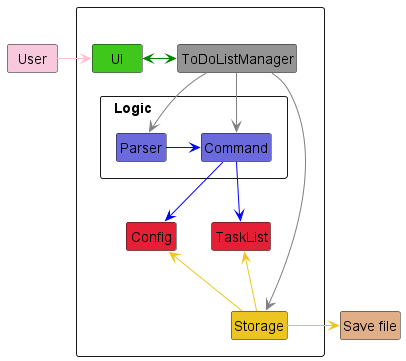
The above diagram provides a high-level overview of the program’s design, which consists of 5 main components.
ToDoListManager: Initializes the other components and connects them togetherUI: Handles all input and output between the user and the programLogic: Parses user input to commands and executes themTaskList: Holds the program’s data in memoryStorage: Saves data to the hard disk and loads it during the program’s startup
Manager Component
The code for this component is found in ToDoListManager.java.
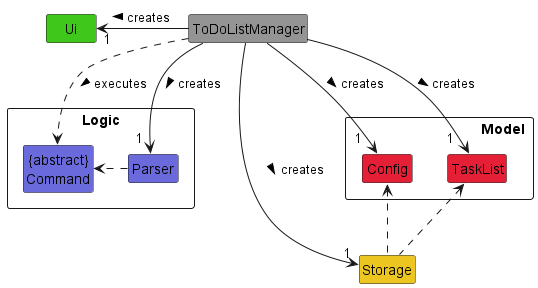
The ToDoListManager component contains the Ui, Logic, Model, and Storage components, and depends
on the Command class, which is returned by the Parser class and executed by the ToDoListManager.
The ToDoListManager component,
- initializes all the other components that it operates on (
Ui,Parser,Model,Storage). - passes user input from the
Uicomponent to theLogiccomponent, which returns aCommandobject. - executes the returned
Commandobject on theModelcomponent, using theLogiccomponent. - calls on the
Storagecomponent to save the data of theModelcomponent locally.
Ui component
The code for this component is found in Ui.java.
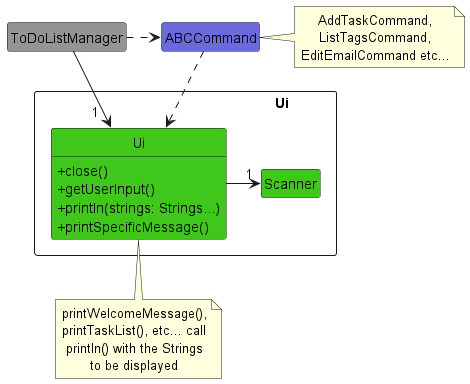
The Ui component consists of just the Ui class.
The Ui component,
- gets the user’s input with the
getUserInput()method. - displays output from executing a
Commandusing theprintln()method. - closes the
Scannerused to get user input whenclose()is called.
Logic component
The code for this component is found here.
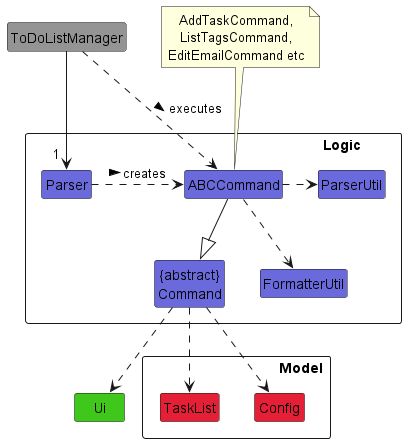
The Logic component contains the Parser, Command, ParserUtil, and FormatterUtil classes, as well as
extensions of the Command class like the AddTaskCommand, ListTagsCommand, and EditEmailCommand subclasses.
The Logic component,
- parses user input through the
ParserandParserUtilclasses, returning aCommandobject (such as anAddTaskCommand). - operates on the
TaskListandConfigclasses, if needed, when aCommandis executed. - invokes the
Uicomponent to display the result of executing aCommand.
Model component
The code for this component is found in here.
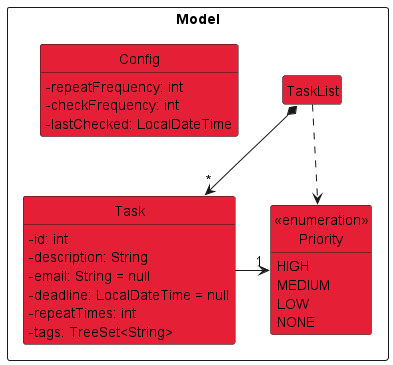
The Model component contains the Config, TaskList, and Task classes, and the Priority enum.
The Model component,
- stores the user’s recurrence-related config settings within the
Config. - stores the user’s tasks within the
TaskList, which it can operate on.
The Task class consists of several attributes:
- An
id, which is a unique positiveint. - A
description, which is a non-emptyString. - An optional
email address, which must be of a valid email address format and is stored as aString. - An optional
deadline, stored in aLocalDateTimeobject. - A
recurrence count, also known asrepeat times, stored as anint. - Any number of
tags, each of which is aString. - A
priority level, which is represented as an enumerationPriority.
Storage component
The code for this component is found in Storage.java.
The Storage component can save the task list as TaskList objects in a .json file format using the GSON library and read it back into a TaskList object.
Implementation
The lifeline of the sequence diagrams in this section should end at the destroy marker (X), but due to a limitation of PlantUML, the lifeline reaches the end of the diagram.
Delete task feature
The DeleteTaskCommand extends NUS To-Do List with a delete feature for the removal of tasks from the task list.
It is facilitated by ToDoListManager, Parser, exception, TaskList and Storage classes.
It implements the TaskList#deleteTask() operation.
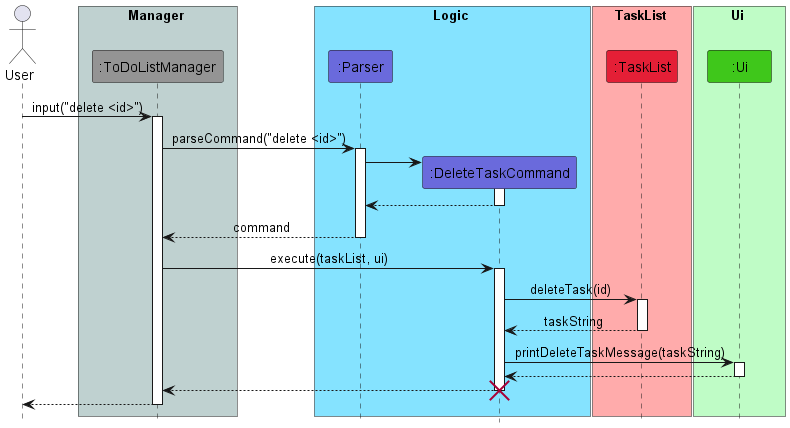
Given below is an example usage scenario and how the DeleteTaskCommand mechanism behaves at each step.
Step 1: The user launches the program for the first time. The ToDoListManager will be initialised. This in turn will then initialise the Parser, TaskList and Storage. Take it as there are no existing tasks read/stored by the program.
Step 2: The user executes add survey -due 20/03/2023 23:59 command to add a task for the To-Do List.
The add command calls TaskList#addTask(), which causes a new Task to be added to the existing TaskList.
Step 3: The user now then decides that adding this task was a mistake, and decides to remove the task from the
To-Do List. The user does this by inputting the command delete 1 into the terminal to delete a task in the task list.
The command will then call the TaskList#deleteTask(), which removes the task at id 1 of the TaskList.
The following sequence diagram shows how the delete task operation works:
Mark/unmark task feature
The Mark/UnmarkTaskCommand extends NUS To-Do List with a mark/unmark feature for the marking of tasks of the task list
as complete or incomplete.
It is facilitated by ToDoListManager, Parser, exception, TaskList and Storage classes.
It implements the TaskList#setDone() operation.
Step 1: The user launches the program for the first time. The ToDoListManager will be initialised. This in turn will then initialise the Parser, TaskList and Storage. Take it as there are no existing tasks read/stored by the program.
Step 2: The user executes add survey -due 20/03/2023 23:59 command to add a task for the To-Do List.
The add command calls TaskList#addTask(), which causes a new Task to be added to the existing TaskList.
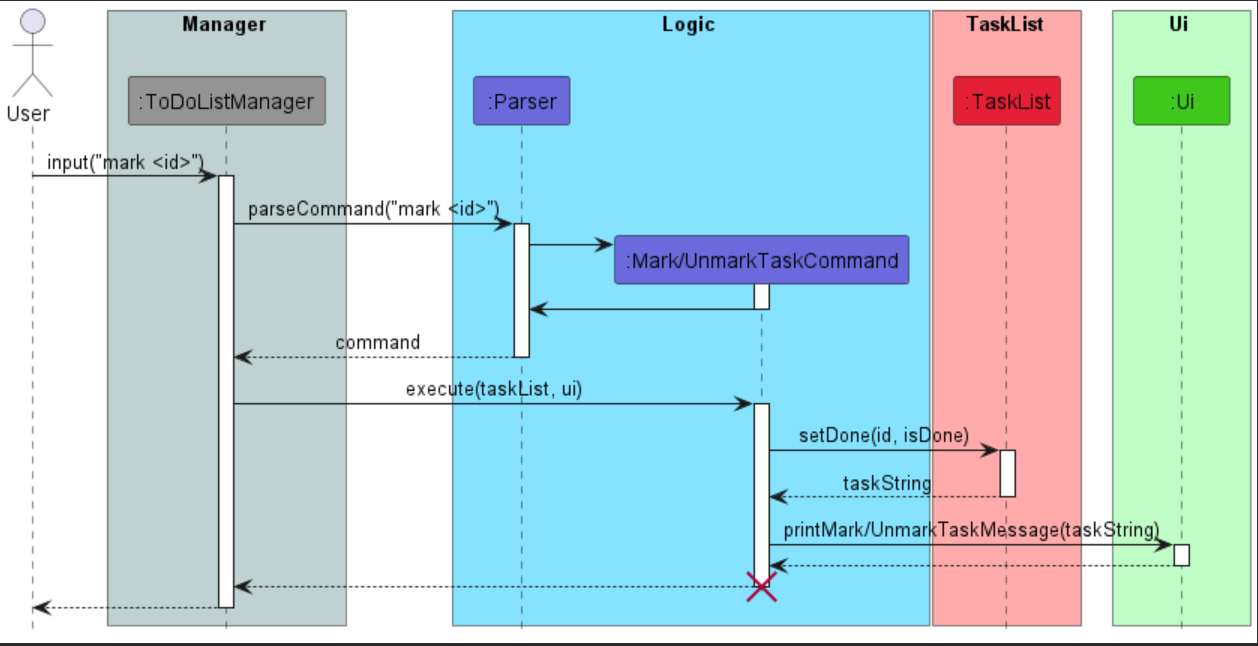
Step 3: The user wants to mark the task as completed by inputting the command mark 1 into the terminal
to mark the task as done. The command will then call the TaskList#setDone(), which marks the task at id 1
of the TaskList as done.
For the unmark command, the user can instead input the command unmark 1 to set the task as incomplete.
The command also calls TaskList#setDone() which sets the task at id 1 to be not done.
The following sequence diagram shows how the mark/unmark task operation works:
Edit task deadline feature
The edit deadline function extends NUS To-Do List with an edit feature for the deadlines assigned to tasks.
It is facilitated by the TaskList and Command classes. It implements the TaskList#setDeadline() operation,
which edits deadline of task at assigned id.
Given below is an example usage scenario and how the edit deadline mechanism will behave at each step.
Step 1. The user launches the application for the first time. There are no existing tasks read by the program.
Step 2. The user executes add survey -due 20/03/2023 23:59 command to add a task to the To-Do List.
The add command calls TaskList#addTask(), which causes a new Task to be added to the existing TaskList.
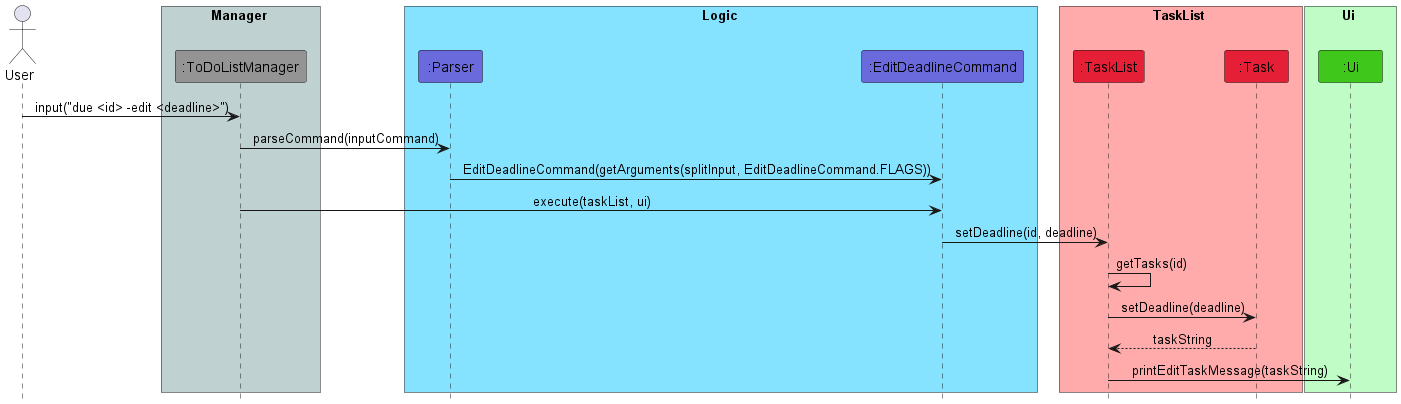
Step 3. The user has received an update about an extension to the deadline for the task, and decides to change
the deadline by executing the edit 1 -due 25/03/2023 15:00 command. The edit will call TaskList#setDeadline(),
which updates the value of deadline for the Task item saved at id 1 to the new updated deadline.
The following sequence diagram shows how the edit operations works:
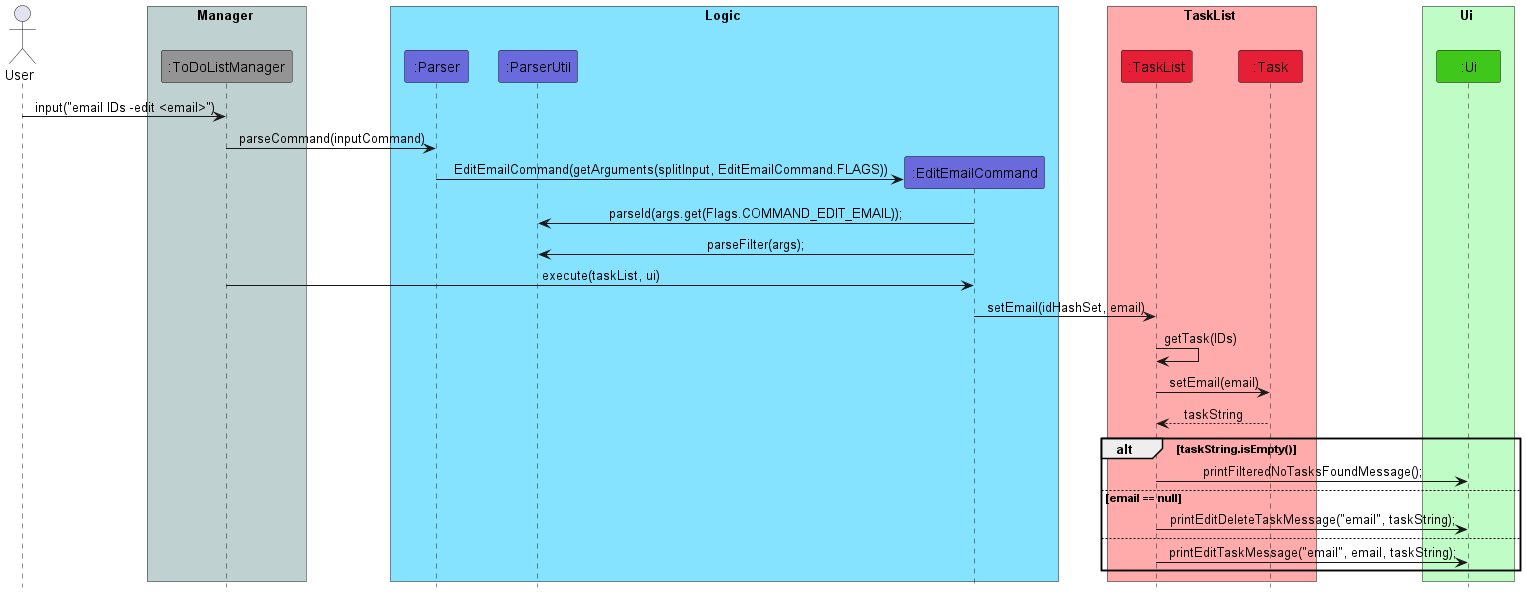
Edit task email feature
The edit email function extends NUS To-Do List with an edit feature to add/edit/delete emails to tasks.
It is facilitated by the TaskList and Command classes. It implements the TaskList#editEmail() operation,
which adds/edits/deletes the email of task at assigned id.
Given below is an example usage scenario and how the edit email mechanism will behave at each step.
Step 1. The user launches the application for the first time. There are no existing tasks read by the program.
Step 2. The user executes add survey -due 20/03/2023 23:59 command to add a task to the To-Do List.
The add command calls TaskList#addTask(), which causes a new Task to be added to the existing TaskList.
Step 3. The user has the email of a teaching staff for the task, and decides to add
the email to the task by executing the email 1 -edit username@gmail.com command. The command will call
TaskList#setEmail(), which adds the email address for the Task item saved at id 1.
Step 4. If the user decides to remove the email address for the task, the user can choose to execute email 1 -del
command. The command will call
TaskList#setEmail(), which removes the email address for the Task item saved at id 1.
The following sequence diagram shows how the edit operations works:
Edit task priority feature
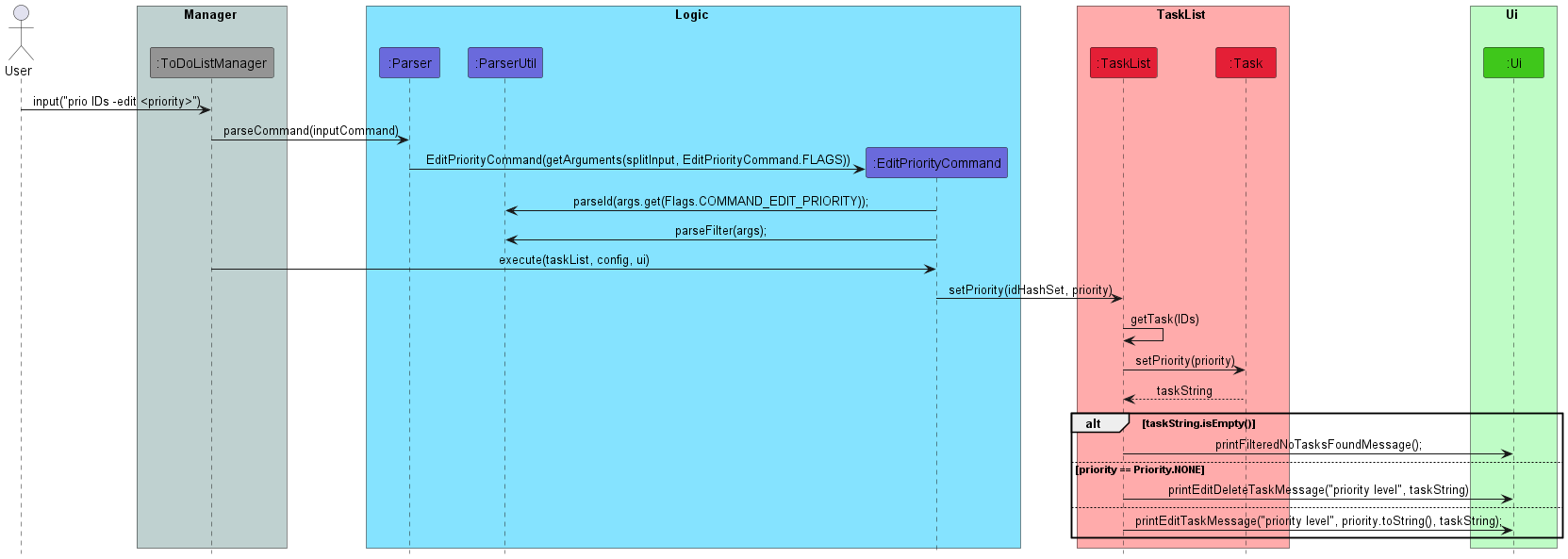
The edit priority function extends NUS To-Do List with an edit feature to add/edit/delete priority levels to tasks.
It is facilitated by the TaskList and Command classes. It implements the TaskList#editPriority() operation,
which adds/edits/deletes the priority level of task at assigned id.
Given below is an example usage scenario and how the edit email mechanism will behave at each step.
Step 1. The user launches the application for the first time. There are no existing tasks read by the program.
Step 2. The user executes add survey -due 20/03/2023 23:59 command to add a task to the To-Do List.
The add command calls TaskList#addTask(), which causes a new Task to be added to the existing TaskList.
Step 3. The user has realised that the tasks has great urgency, and decides to add priority level to the task by
executing the prio 1 -edit 3 command. The command will call TaskList#setPriority(), which sets the priority level
for the Task item saved at id 1 to be high.
Step 4. If the user decides to remove the priority for the task, the user can choose to execute email 1 -del
command. The command will call TaskList#setEmail(), which removes the priority level for the Task item saved at id 1.
The following sequence diagram shows how the edit operations works:
Repeating tasks feature
The repeating tasks function extends NUS To-Do List allowing tasks to be listed as repeating for a certain number of
occurrences.
It is facilitated by the TaskList, Storage and Command classes. It implements the TaskList#setRepeatTimes()
which sets the number of times the task is to repeat, and TaskList#checkRepeatingTasks() to check for tasks stored
in the TaskList for repeat settings.
Given below is an example usage scenario and how the repeating task mechanism will behave at each step.
Step 1. The user launches the application for the first time. There are no existing tasks read by the program.
Step 2. The user executes add survey -due 20-03-2023 23:59 -rep 3 command to add a task to the To-Do List.
The add command calls TaskList#addTask(), which causes a new Task to be added to the existing TaskList.
Step 3. The user then exits the program with the saved TaskList.
Step 4. The user opens the program a week after the set deadline of the survey task. Since the configuration file is
still at default settings, it will check after every command is executed if any tasks in the TaskList have a repeat
count of > 0 and is due for repeat after 1 week. Since the existing task fulfils the condition, a new task with the same
description survey will be created, with a deadline of 1 week from the original deadline appended to the
task. (i.e 27-03-2023 23:59). The repeat count of the original survey task will be changed to 0, whilst the new survey
task will have a repeat count of 2.
List tasks sorted by deadline feature
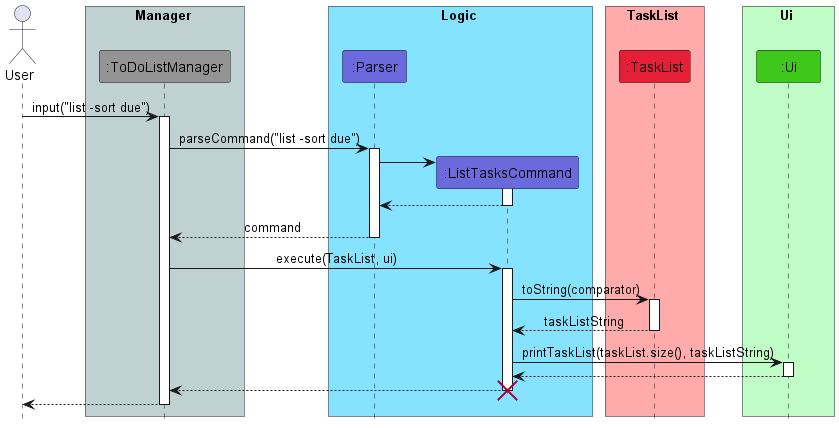
This ListTasksCommand extends NUS To-Do List with an automatic sorting feature that sorts all tasks in an ascending
deadline order and displays the To-Do List to users. It is facilitated by the TaskList, Command class, and UI class.
It implements the TaskList#toString() and ui#printTaskList()operation.
Given below is an example usage scenario and how the ListTasksCommand mechanism will behave at each step.
Step 1. The user launches the application for the first time. There are no existing tasks read by the program.
Step 2. The user executes add survey -due 20/03/2023 12:00 and add survey -due 21/03/2023 12:00 command to add 2
tasks to the To-Do List. The add command calls TaskList#addTask() once for each task, which causes 2 new Tasks to
be added to the existing TaskList.
Step 3. The user wants to view the entire list of deadlines that he/she has added. The user can do this by using the
command list -sort due into the terminal. By doing so,TaskList#toString() will be executed, which will sort
the list in an ascending deadline order, where the deadline that is closest to date will be at the top and the deadline
furthest to date will be at the bottom. Next, ui#printTaskList() will be executed, which will display the list of
deadlines to the user in the terminal.
The following sequence diagram shows how the list operation works:
Storage feature
The storage feature is facilitated by the Storage class.
The Storage class implements the following operations:
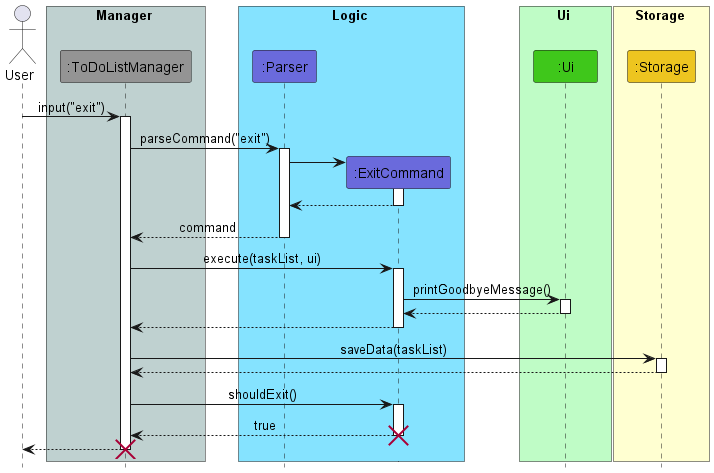
Storage#save()— Saves the current task list.Storage#loadData()— Loads a task list from the previously saved file, if there is one.
Given below are 3 example usage scenarios and how the Storage mechanism behaves in each scenario.
Scenario 1: The user launches the application and there is a valid save file found. Storage loads the file successfully and informs the user of the loaded task list (and how many tasks there are in it).
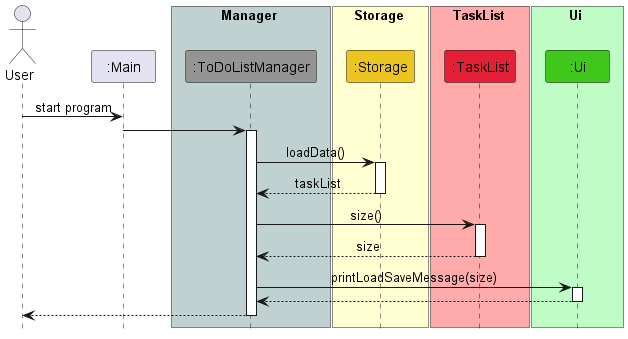
Scenario 2: The user launches the application and there is no save file found. Storage informs the user that there is no save file found and that a new one will be created for them later.
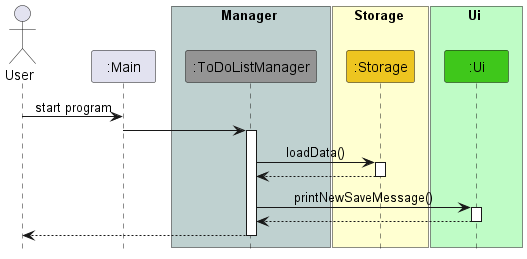
Scenario 3: The user edits the task list or exits the program. Storage saves the changes automatically into the save file. Note that the sequence diagram below shows what happens when the user exits the program, but the processes in Storage occur even when the user performs other commands to edit the task list.
Design considerations:
- Option 1: Save task list as a self-formatted .txt file which can be printed and used as a physical task list.
- Pros: Can get a physical task list to use.
- Cons: Difficult to maintain as Storage class has to be updated whenever more fields are added to Task class. For example, if we add a “tag” field to Task, the formatting for the saved .txt file has to be updated to reflect that change.
- Option 2: Append rather than overwrite when saving the task list.
- Pros: Will likely be able to save the task list much faster.
- Cons: Difficult to implement, especially when considering the current mark task operation.
- Option 3 (current choice): Save task list as a json file using the GSON library.
- Pros: Easy to implement and easy to maintain as Storage class does not have to be updated whenever new fields are added to Task class. Do not need to consider whether we use append or overwrite when saving task list as it is irrelevant when using this implementation. The GSON library’s pretty printing functionality makes the json file very easy to read for humans and understand which allows advanced users to easily modify the file for quick updating of their task list.
- Cons: Users have to download some dependencies to be able to use the GSON library.
Main reasons for choosing Alternative 3: It is much easier to implement and maintain than the other 2 alternatives, and we found that the need to download dependencies to use the GSON library would not be a big issue.
Progress Bar Feature
The ProgressBarCommand extends NUS To-Do List with a progress bar feature for tracking the progress on tasks in the task
list that must be finished by the current week. It is facilitated by ToDoListManager, Parser, TaskList, TemporalField,
LocalDate and Ui classes. It implements the Ui#printProgressBar() operation, which informs the user of their progress
using a percentage (up to 2 decimal places) and a bar (where ‘=’ denotes completion and ‘-‘ denotes incomplete).
Given below is an example usage scenario and how the ProgressBarCommand mechanism behaves in this scenario.
The user has a task list with 3 tasks that are due this week. Among the 3 tasks, 1 is marked as done. The user executes
the progress command, which will call Ui#printProgressBar(). The user now sees that they have completed 33.33% of
their tasks and a progress bar to help them visualize their progress.
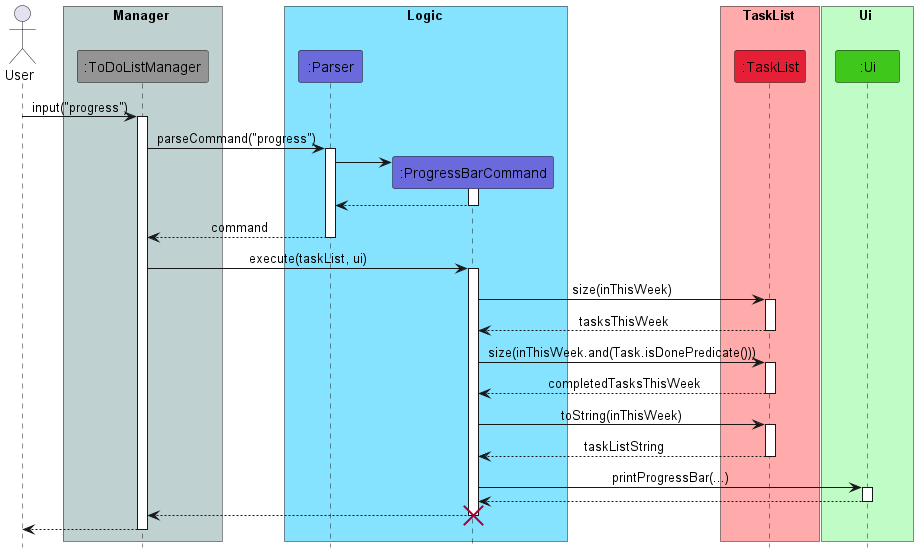
In the above diagram printProgressBar(completedTasksThisWeek, tasksThisWeek, PROGRESS_BAR_SECTIONS, taskListString)
is abbreviated as printProgressBar(...).
Reset feature
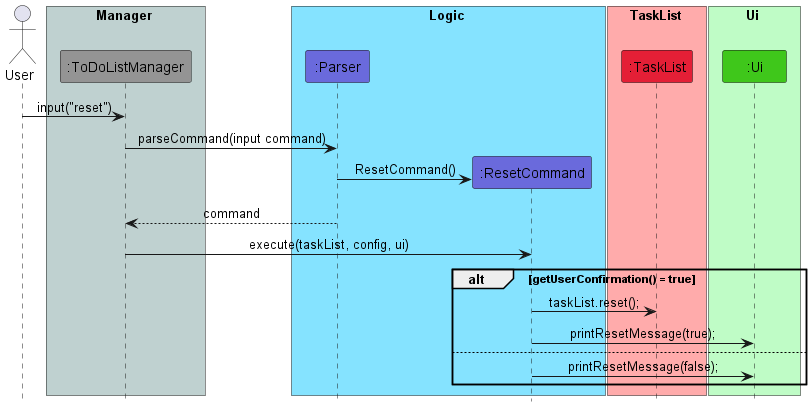
The ResetCommand extends NUS To-Do List with a reset feature to allow users to start a new To-Do list if needed. It is facilitated by ToDoListManager, Parser, TaskList and Ui classes.
Given below is an example usage scenario and how the reset mechanism will behave at each step.
Step 1. The user launches the program, assuming the To-Do list is filled with tasks. However, the user realise all the tasks in the tasks list have expired and wants to remove all of them in a quick way.
Step 2. The user executes reset to remove all the tasks and start a new To-Do list.
Step 3.The user would be shown a confirmation message. If the user inputs YES, the command calls TaskList#reset() to
reset the task list and a reset message will be printed to inform the user that the To-Do list has reset. However, if
the user inputs anything else, a cancellation message will be printed to notify the users.
The following sequence diagram shows how the ResetCommand operation works:
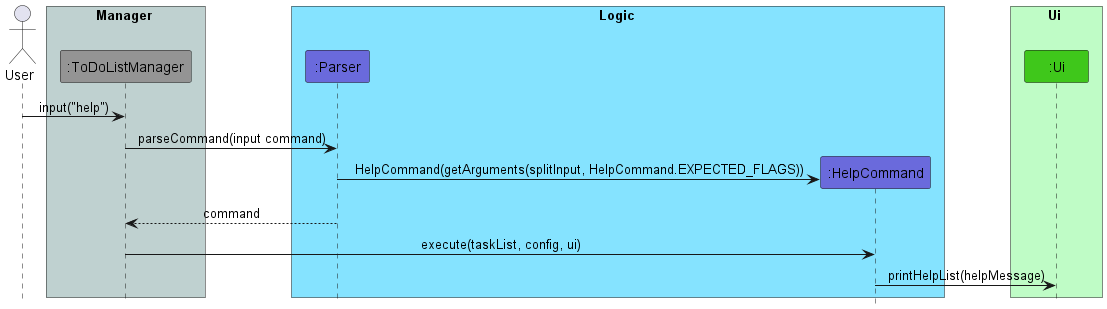
Help List feature
The HelpCommand extends NUS To-Do List with a help list feature to allow users to keep track of all the possible
commands of the program. It is facilitated by ToDoListManager, Parser, Ui classes. It implements the
Ui#printHelpList(helpMessage) operation, which displays a help list for the users. Different help lists would be
displayed based on the different HELP_TYPE such as filter or sort or none.
The following sequence diagram shows how the ResetCommand operation works:
Appendix
Product scope
Target user profile
Forgetful NUS students who used to rely on LumiNUS’s deadline reminders.
Value proposition
With the transition to Canvas, the most important feature of LumiNUS’s deadline reminders is gone! Our project aims to bring an application to keep you aware of your deadlines and not miss them.
User Stories
| Version | As a … | I want to … | So that I can … |
|---|---|---|---|
| v1.0 | user | add tasks to my to-do list | |
| v1.0 | user | add a time/deadline to a task | record when a task needs to be done |
| v1.0 | user | list all tasks by ascending date | view tasks that have an earlier deadline |
| v1.0 | user | remove tasks | remove finished/wrong tasks |
| v1.0 | user | mark/unmark tasks | check off unfinished tasks |
| v1.0 | user | edit the time/deadline of existing tasks | update tasks with changed deadlines (postponed/brought forward) |
| v2.0 | student | add tags/module codes to each task | group related tasks together |
| v2.0 | student | set reminders at the start of the day | do not forget what I have to achieve by the end of the day/week |
| v2.0 | user | list all the tasks in chronological order/grouped by module code/grouped by type of work (individual/group work) | have a “birds’ eye view” of all my tasks. (i.e different sorting methods) |
| v2.0 | user | filter the tasks by their properties (description, deadline, tags, …) | find them easily |
| v2.0 | user | view the tasks in a calendar view | view them in a summarised layout |
| v2.0 | user | add the email of the professor/TA in charge of the task | can email them to clarify if needed |
| v2.0 | user | attach a list of files/links to refer to | know where the materials I can refer to are |
| v2.0 | user | set a task to repeat | create 1 task to represent repeating tasks every week |
| v2.0 | user | set priority level and can sort the tasks based on the priority level | identify high priority tasks |
| v2.0 | user | see a progress bar | track my progress of unfinished tasks |
| v2.1 | user | customise some of the repeating settings | reduce my system usage and repeat my tasks at a more suitable frequency |
Non-Functional Requirements
- Should work on any mainstream OS assuming it has Java 11 or above installed.
- A user with above average typing speed for regular English text (i.e. not code, not system admin commands) should be able to accomplish most of the tasks faster using commands than using the mouse.
Glossary
| Term | Definition |
|---|---|
| Mainstream OS | Windows, Linux, Unix, OS-X |
| Main command | The first word in a command, like add or help |
| Flag | A word preceded by a dash, like -edit or -due |
| Argument | The words following the main command or a flag and before the next flag |
| Id | Identification number; it is fixed for any given task |
Instructions for manual testing
The following are instructions on how to test the program manually.
- After downloading the jar file from here, run it in a terminal to start the program.
- Test case:
java -jar NUSTo-DoList.jar - Expected: The startup and save loading messages will be displayed in the terminal.
- Test case:
- Try running some commands - use the command
helpor refer to the User Guide for a list of commands.- Test case:
help - Help message is displayed.
- Test case:
- Try adding a task with various attributes with the
addcommand.- Test case:
add do homework -due 9/9/2025 19:37 -email rui@gmail.com -tags difficult later -prio 2 -rep 12 - The above command adds a task with the description
do homework, the deadline9/9/2025 19:37, the email addressrui@gmail.com, the tagsdifficultandlater, the priority levelMedium, and will recur weekly up to12times starting from its deadline. - Expected: A message about how the task was successfully added is displayed.
- Test case:
- Try marking a task as complete/incomplete with the
markandunmarkcommands.- Test case:
mark 1,unmark 1 - Expected: A message about how the task was marked as complete/incomplete is displayed.
- Test case:
- Try displaying a summary of tasks using the
listcommand.- Test case:
list -done 1 -sort due - Expected: A summary of tasks is displayed. This particular test case shows only complete tasks, sorted by deadline with earlier deadlines first.
- You may want to use the
addandmarkcommands to add more complete tasks after trying this command to see the difference.
- Test case:
- Try displaying the detailed attributes of a task using the
infocommand.- Test case:
info 1 - Expected: All the attributes of the task is displayed.
- Test case:
- Try editing an attribute of a task using the
desc,due,email,tags,prio, orrepcommands.- Test case:
prio 1 -edit 1 - Expected: A message about how the task’s priority level was edited to
Lowis displayed. You can use thelistorinfocommands to verify this.
- Test case:
- Try checking all the tags in your task list with the
taglistcommand.- Test case:
taglist - Expected: A comma separated list of any tags your tasks have is displayed, in lexicographic order.
- Test case:
- Try viewing a summary of this week’s tasks, with a progress bar, using the
progresscommand.- Test case:
progress - “This week” is defined as from this Monday to this Sunday.
- Expected: A summary of this week’s tasks is displayed, similar to the
listcommand, along with a progress bar. - You may want to add some tasks that will be due “this week” after trying this command to see the difference.
- Test case:
- Try deleting a task from your task list using the
deletecommand.- Test case:
delete 1 - Expected: A message about how the task was deleted is displayed. You can use the
listcommand to verify this.
- Test case:
- Try viewing your config settings using the
configcommand.- Test case:
config - Expected: Your current config settings are displayed.
- Test case:
- Try resetting your task list using the
resetcommand.- Test case:
reset - You will need to confirm this by entering
YES(case sensitive). - Warning! This is irreversible.
- Expected: Your task list is reset, with all tasks deleted. Running an
addcommand will start from id 1 again.
- Test case:
- To exit, use the command:
exit- Expected: The exit message is displayed in the terminal and the program exits, returning control to the terminal.